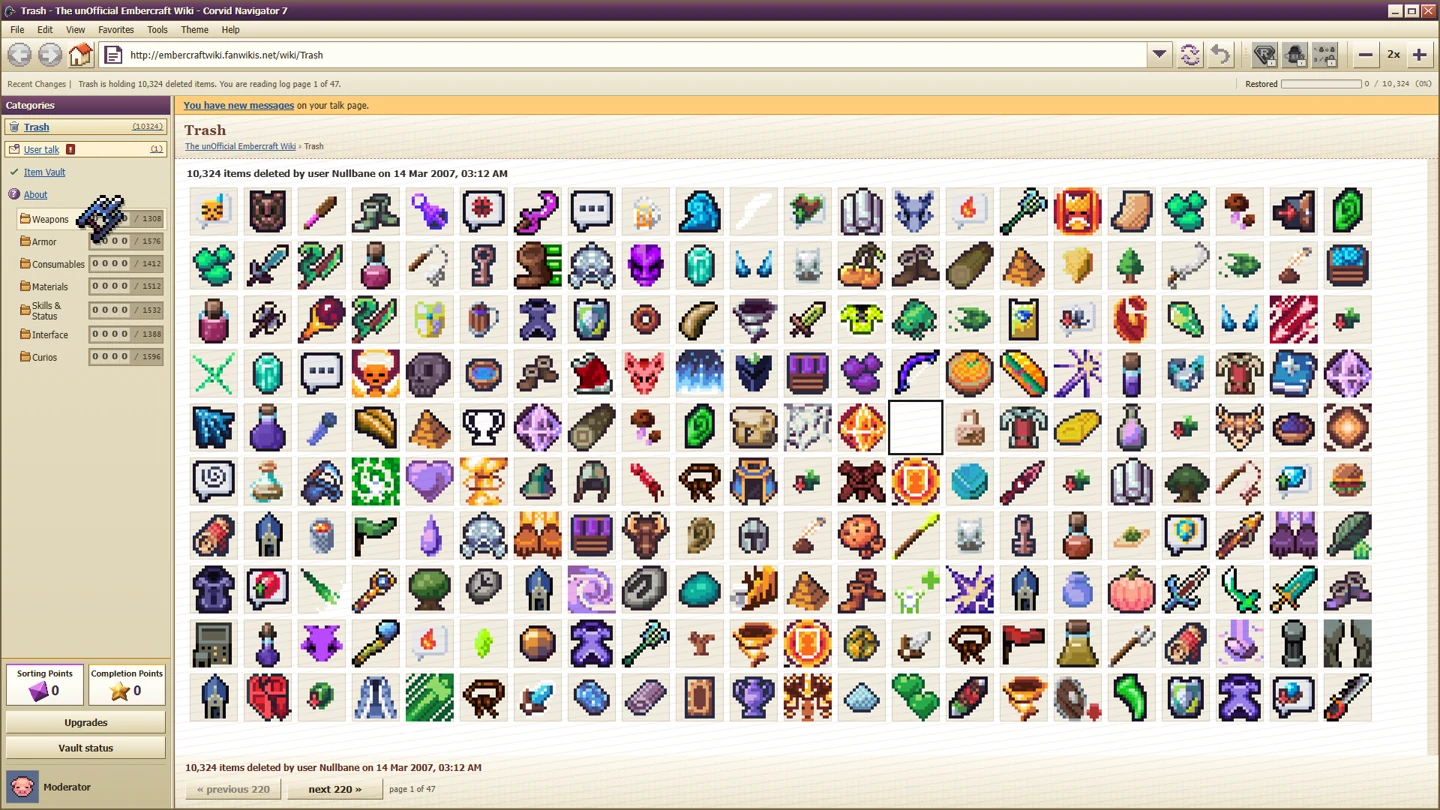
AutoRestore can process several different item types in one use. Select the items, right-click one of the selected items, then choose AutoRestore. If the batch is smaller than expected, check AutoRestore's level and the separate Multiselect Items limit.
Patch 1.0.1 clarified the capacity rules, and 1.0.3 fixed Sorting Points earned by AutoRestore. Both changes matter: the first explains how a batch is assembled; the second explains why an older automated run could finish with too few points to buy every script.
Read three limits, not one
AutoRestore has a copies-per-item limit, a different-items-per-use limit and a cooldown. The Upgrades page now shows those three values at each level. They answer different questions.
| Limit | The question it answers |
|---|---|
| Copies per item | How many copies of one particular item can this use restore? |
| Different items per use | How many different item types can this use include? |
| Cooldown | When can another use happen? |
| Multiselect Items capacity | How many different items can you select in the first place? |
Do not interpret “20” as permission to restore twenty completely arbitrary stacks of unlimited size. The official clarification says levels 1–5 increase copies per item, reaching 20. Levels 6–15 increase the number of different items per use, also reaching 20. That is a description of the two capacity tracks, not a promise that every intermediate level has the same limit.
Make a multiple-item batch
- Install the Multiselect Items userscript so that selecting more than one item is available.
- Select the different items you want to restore.
- Right-click one of those selected items.
- Read the AutoRestore entry before using it. The menu indicates how many items it will take.
- If the menu identifies Multiselect Items as the limiting factor, examine that script's next upgrade rather than assuming AutoRestore is broken.
The right-click information is particularly useful because it describes the selection you have now. A high AutoRestore level cannot process an item type that was never included in the selected batch. Conversely, selecting a large number of types does not override AutoRestore's current different-item limit.
Use a small batch while learning the interaction. Compare the selected types with the menu's count. That is easier to diagnose than a large, mixed selection where you cannot tell whether the problem is selection capacity, copies capacity or cooldown. This is a checking method, not a claim that small batches produce a special bonus.
Match the upgrade to the shortfall
If one item type is being restored but not as many copies as you expected, look at copies per item. If the selected batch contains several types but only part of it is processed, inspect different items per use. If you cannot include enough types in the batch, inspect Multiselect Items. If the next use is unavailable, check the cooldown displayed by the game.
Those checks prevent a common mistake: spending points on the script whose name sounds closest to the problem while leaving the actual limiting script unchanged. There is no published universal cost-efficiency table here. The current card and menu give you the values needed for your own next decision.
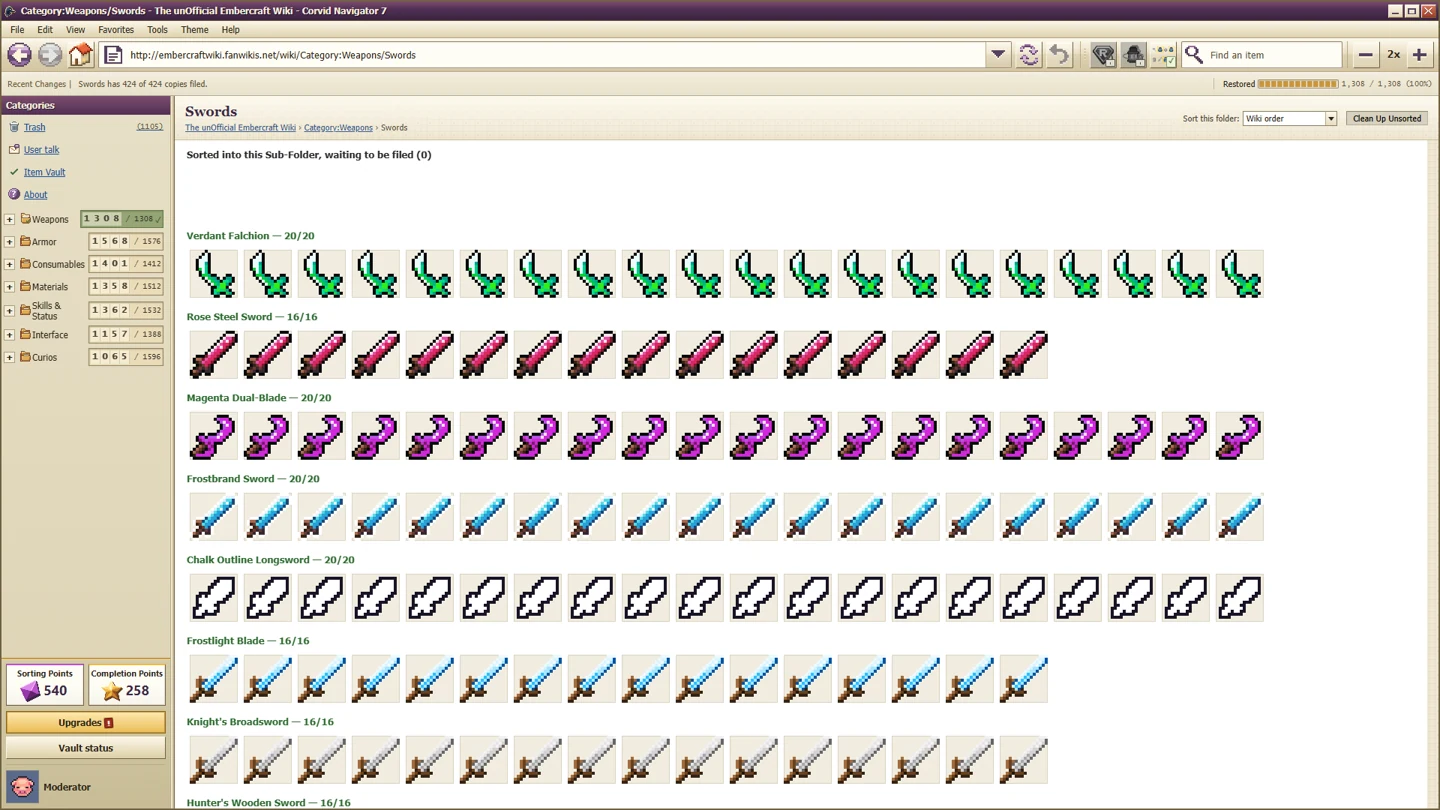
The official store distinguishes Sorting Points from Completion Points. Filling an item row earns the latter; loose sorting produces the former. If an upgrade needs Completion Points, return to unfinished rows. For the visual distinction between category, sub-folder and row, use the beginner sorting guide.
Sorting Points changed in 1.0.3
Before 1.0.3, AutoRestore did not award Sorting Points. The developer's patch note explains that a heavily automated run could therefore be unable to afford every script, making Hackerman impossible. AutoRestore now awards Sorting Points for every item it files, as manual sorting does.
This is a version issue, not evidence that automation permanently penalises all rewards. A player who described a “power-up penalty” was reporting the symptom before the fix. Do not use that explanation as the current rule.
The patch does not explicitly promise to reimburse every historical Sorting Point missed in every old save. If you finished the log before the fix and still cannot afford an upgrade, preserve that save and report the exact shortage. We do not recommend deleting it in the hope that an undocumented reimbursement will occur. The achievement troubleshooting page covers the known recovery boundaries.
Keep automation separate from an achievement attempt
AutoRestore's normal capacity does not prove it counts for every specialised achievement. Minor Edit now counts items leaving the deletion log through AutoRestore, according to 1.0.3. Recognized on Sight is different: the revised description refers to dragging items to the right Sub-Folder or Item Folder without reading a hover tooltip.
An early developer reply considered extending Recognized on Sight to several automated methods, then chose a narrower revision. It is unsafe to turn that proposed change into a shipped feature. For that achievement, use the current-condition guide rather than assuming the strongest automation is also the right tool for the streak.